
At True Assisting, we are big fans of Alexa and the features it offers, especially for seniors and caregivers. But like any software, it’s important to protect your privacy, too. In this blog, we are sharing Amazon Alexa features that will make your life easier and features you might consider turning off to protect your privacy.
Disclosure: This post may contain affiliate links, which means we may receive a commission if you click a link and purchase something that we have recommended. This commission comes at no additional cost to you, but will help us keep this site up and running and ad-free! Thank you for all the support. You’re under no obligation to purchase anything and should only do so if the product will suit your needs.
Useful Amazon Alexa Features
Before we talk about which features to turn off, let’s walk through which popular Alexa features can make your daily life simpler.
Productivity and Daily Life:
- Find My Phone: Once you link your phone, Alexa will help you locate it when you say, “Alexa, help me find my phone.” Learn more about how to enable this feature here.
- Set timers and alarms: Amazon Alexa is the perfect time management assistant with options to set timers and alarms so you don’t miss an appointment or forget to take something out of the oven.
- Alexa Routines: Create automated routines such as getting weather updates or controlling smart home devices by setting up an Alexa routine in your Alexa app.
Entertainment and Information:
- Family games and jokes: Alexa can be fun with over 5,000 game and trivia options along with joke skills that the whole family will love.
- Listen to podcasts and books: Listen to your favorite podcasts, ask Alexa to play your favorite Audible books, or listen to a bedtime story with these helpful skills.
- Create a playlist: Compile your favorite songs by creating a playlist of your most-loved songs that you can listen to anytime.
Consider disabling these Amazon Alexa features:
1. Hunches
Alexa’s Hunches feature include automatic actions and suggestions. Sometimes, these can be helpful, like a reminder to set a timer. But if you’re on the phone or having a conversation with someone in the house, they can get annoying quickly.
To turn off hunches:
- Open your Alexa app
- Tap “More”
- Then “Settings” then “Hunches”
- Slide the toggle to the left to turn it off.
📱 Video chatting is a great way to connect with seniors when you’re unable to be with them in person – Best Video Call Devices for Seniors
2. Drop-In
The Drop-In feature allows your friends and family can just start talking through your Alexa speaker. Unlike a phone call, you don’t have to answer anything. The issue is that once they have access, they can do it any time! We suggest keeping Drop-In turned off unless you’re using it for a current conversation.
To switch Drop-In off, follow these steps:
- Choose Devices from your Alexa app
- Select your speaker or other device
- Click “Communication”
From here, you can turn off drop-in entirely or leave it on only for certain connected devices.
👀 If you’re dealing with vision impairments these Amazon Skills are very helpful – Technology Assistance for Seniors and People with Hearing Impairments
3. Use of your voice recordings
You may not be aware of this, but Amazon defaults Alexa users to opt-in on this. What this means is that without your informed consent, Amazon has your permission to use your voice recordings for their own research.
If this makes you uncomfortable, here’s how to turn it off:
- Open your Alexa app and tap “More”
- Then choose “Settings” and “Privacy”
- This will open a separate page where you can select “Manage Your Alexa Data”
- Scroll down and switch “Use of Voice Recordings” to off.
- A pop up will open, asking you to confirm this decision.
While you’re in there, you can also opt to delete your voice recordings after three months.
➡️ While Alexa is not a replacement for a caregiver, using Alexa to support caregiver roles can be tremendously helpful – Amazon Echo Makes Life Easier for Seniors and Caregivers

4. Camera
Hacking webcams of any kind is a notorious trick hackers use. To protect yourself, keep your camera disabled until you need it. If you’re using an Echo show, this is as simple as using the toggle device on the Show itself.
⭐ Alexa is capable of so much more than playing music. Check out our favorite features here – 13 Alexa Skills You’ll Love
5. Alexa Skills Permissions
Skills are a fancy name for apps, and Alexa has a lot of them! They may have access to anything on your device, including address and payment info. Although they typically default to off, it’s a good idea to check that nothing’s accessing your information without your permission.
Navigate back to the Privacy page where you turned off voice recordings and choose “Manage Skill Permissions“.
💡As technology continues to advance, it has made life easier for people of all ages, including seniors – How Technology is Changing the Way Seniors Age in Place
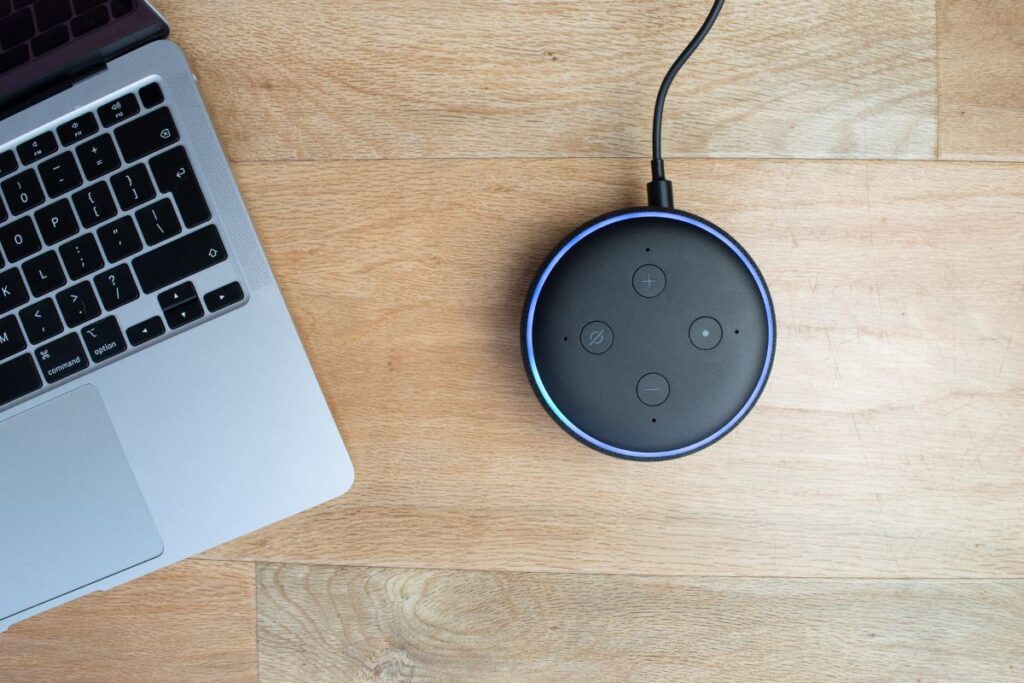
6. Turn off Parroting by Turning On Brief Mode
Does it make you nuts when Alexa repeats everything back to you? Brief Mode is the answer!
To turn it on:
- Open your Alexa app
- Tap “More”
- Then, open Settings and “Voice Responses”.
- Then use the toggle to turn on Brief Mode.
You may want to turn on Whisper Mode while you’re here too!
Try these Amazon Alexa commands today
- Alexa, what’s on my calendar today?
- Alexa, tell me a joke
- Alexa, set a ten minute timer
- Alexa, turn off all the lights
What are your best tips for making your Alexa more privacy- and user-friendly? Let us know in the comments! We might share them in a blog post.
Join Our Mailing List
Get the latest news and insights from True Assisting delivered straight to your inbox. Click here to subscribe to our newsletter.